Blog › Product update
GeoTest's new dashboard: every site in one table, one page per site, and a fix checklist
By Jason Gordon · October 13, 2026
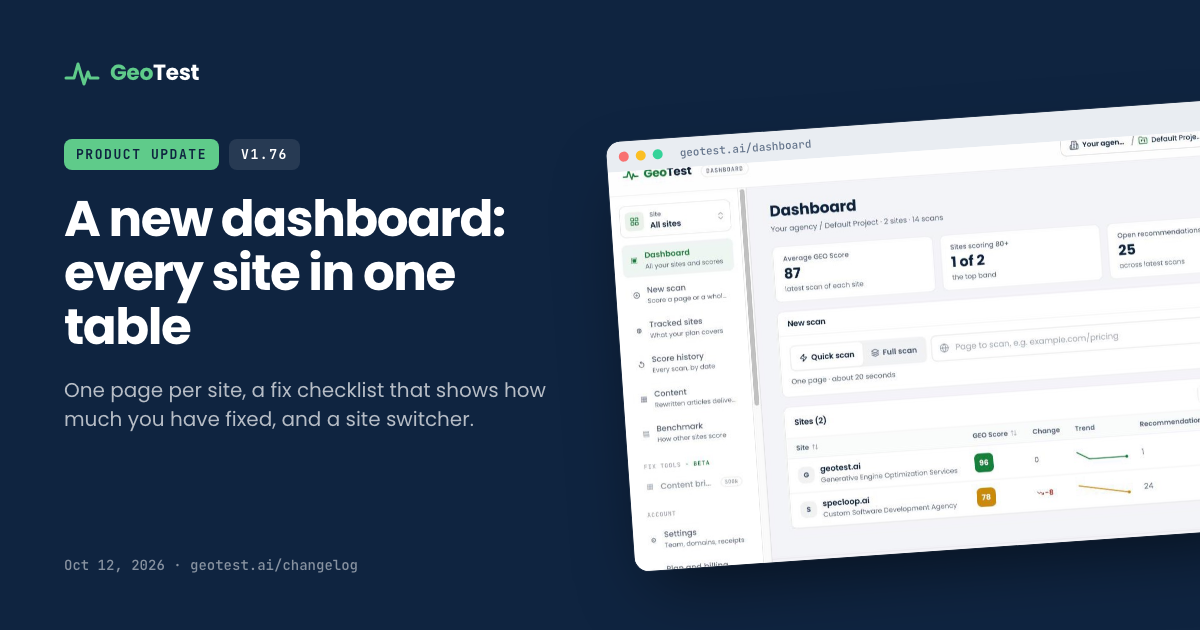
GeoTest's dashboard is rebuilt around your sites. You start from one table of every site you track. Click a site to open its full report, or open its own page to see its score, its history and a checklist of fixes that shows how much of the site you have fixed. Release 1.76 is live for every signed-in account.
We rebuilt it because the old dashboard was organised around scans, not sites. If you looked after more than a couple of websites, you scrolled through a list of reports to find the one you wanted, and it was easy to lose track of which site you were looking at. The new layout starts from the question people actually ask: how is each of my sites doing, and what should I fix next?
What changed in the GeoTest dashboard?
Four things:
- A table of all your sites. Every site you scan sits on one row with its latest GEO Score, the change since the last comparable scan, a trend line, open recommendations and when it was last scanned.
- One page per site. Each site has its own page with its score, category scores, score history, fix checklist and every scan you have run on it.
- A fix checklist with a percentage. Tick fixes off as you make them and the site page shows what share of its fixes are done and how many points are still left to gain.
- A site switcher and breadcrumbs. The site you are working on is always named at the top of the left menu, and every report shows Dashboard › site › Report, so Back takes you back instead of out to the homepage.
How does the sites table work?
The dashboard opens on four headline numbers: your average GEO Score (latest scan of each site), how many sites score 80 or more, open recommendations across your latest scans, and scans run this month, split into quick and full. Under them is a one-line scan bar: pick Quick scan (one page, about 20 seconds) or Full scan (the whole site), paste an address and run it.
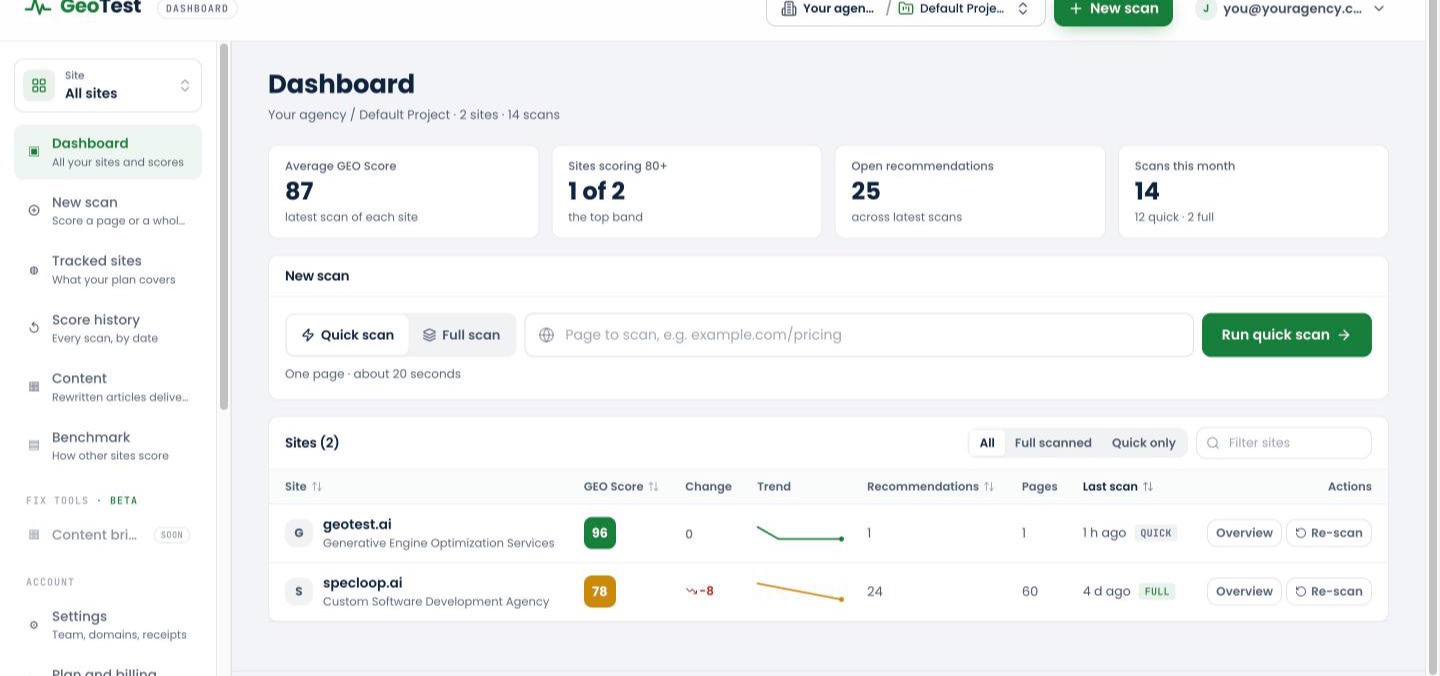
Below that is the sites table. Sort it by site name, score, recommendations or last scan; filter it to sites with a full scan or quick scans only; or type part of an address to find a site. Each row has two buttons: Overview opens the site's own page and Re-scan starts a new scan of the same address. Clicking the site's name goes straight to its latest full report, because that is where most people want to land.
What is on a site page?
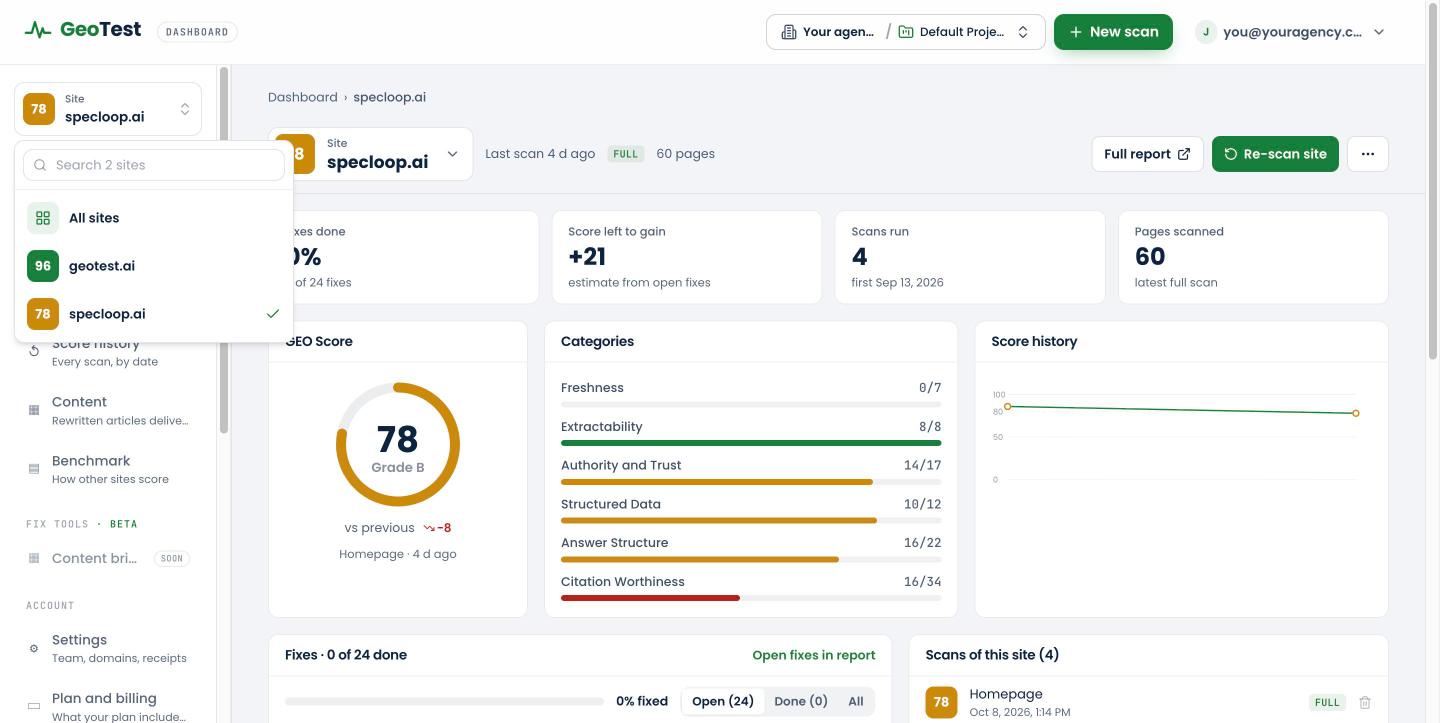
A site page answers "where does this site stand?" without opening a report. The site's name stays in a bar at the top with Full report and Re-scan site buttons, and under it are four numbers:
- Fixes done: the percentage of the latest scan's fixes you have ticked off.
- Score left to gain: an estimate of the points still available from the open fixes.
- Scans run: how many times the site has been scanned, and when it was first scanned.
- Pages scanned: pages covered by the latest full scan.
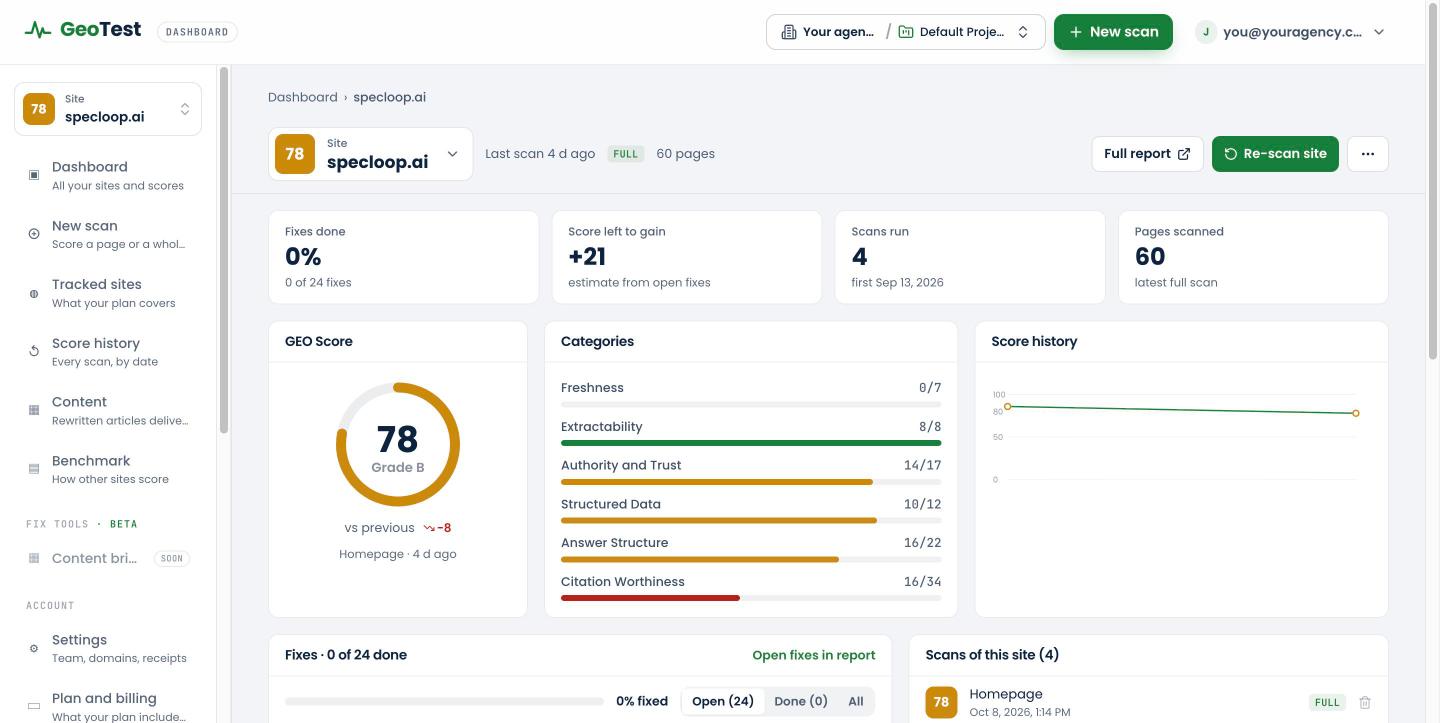
Then come the GEO Score with its grade and the change from the previous comparable scan, a bar for each scoring category (Citation Worthiness, Answer Structure, Structured Data, Authority and Trust, Extractability and Freshness), and a score history chart. At the bottom is every scan of the site, newest first, so you can open or delete an old one.
How does the fix checklist work?
The checklist lists every fix from the site's latest scan, most valuable first. Each line shows its priority, the points it adds to the score where we can estimate them, and roughly how long it takes. Tick a fix when you have made it. The bar and the Fixes done number update straight away, and you can switch between Open, Done and All.
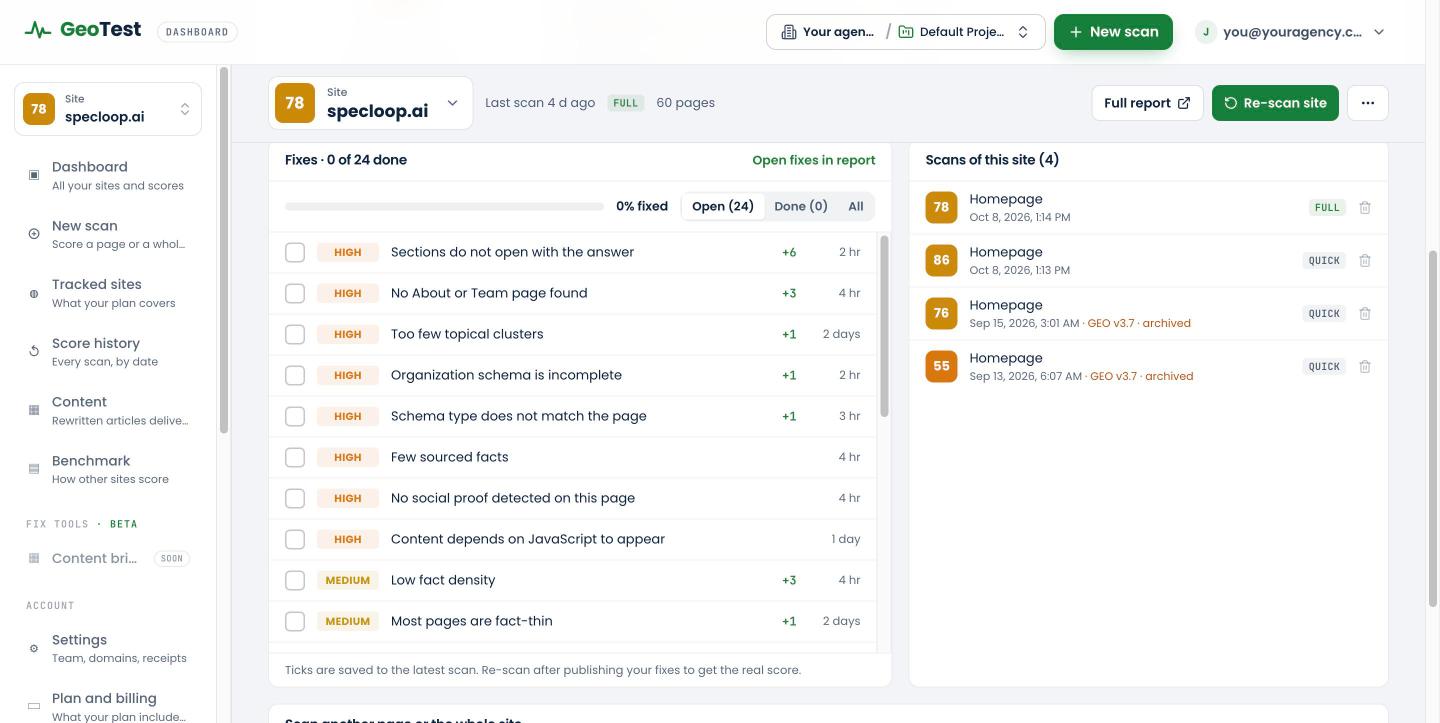
Two things to know. First, ticks are saved to your account and also show on the roadmap inside the report, so you can tick from either place. Second, ticking a fix does not change your GEO Score. The score only moves when you publish the change and re-scan, because GeoTest scores what is actually on the page, not what has been marked done.
How do I switch between sites?
Use the site switcher at the top of the left menu. It shows the site you are on (or All sites on the dashboard), and opening it lists every site in your workspace with its latest score and a search box. Pick a site to jump to its latest report, or All sites to go back to the table. On a report, the switcher shows that report's site, so you always know where you are.
Does Back still take me to the homepage?
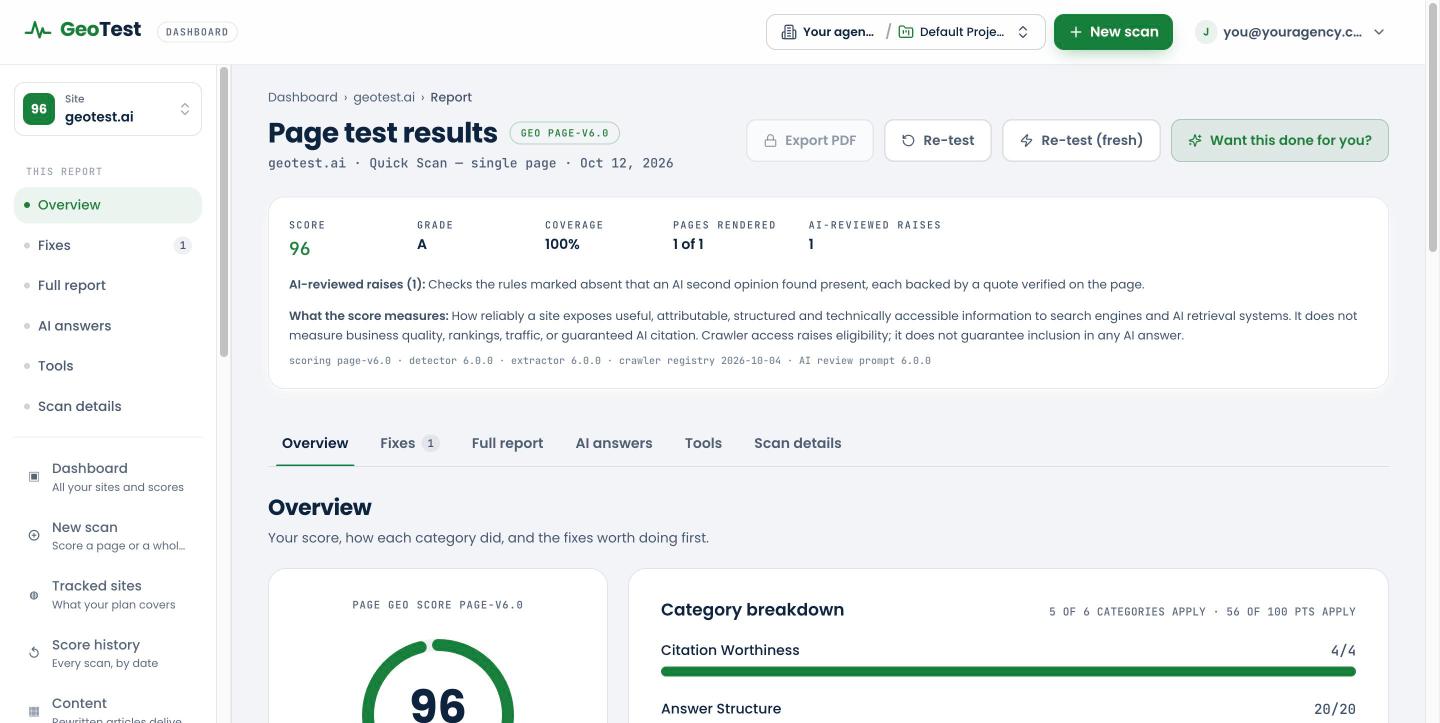
No. Every report now starts with Dashboard › site › Report, so one click takes you to the site's page and two take you to the dashboard. The links on Score history, the changelog, billing, plans and the page-not-found screen now return signed-in users to the dashboard instead of the public homepage, and those pages no longer show the public site's spacing inside the app.
What else is in release 1.76?
- Roadmap ticks save again. Since Scoring Engine 6.0, ticking an item on a report's roadmap did not save. That is fixed, and the same ticks drive the new checklist.
- A bigger public benchmark. The benchmark now includes independent quick scans of small-business sites across many trades and US cities, chosen by trade and city rather than by score, so you can compare your site with a broader, more typical set of websites.
Who is this for?
If you run one website, the change is mostly about focus: open your site's page, work down the checklist, re-scan when you have published the fixes, and watch the history line. If you are an agency or look after several sites, the table is the point. You can see at a glance which client sites slipped since their last scan, which have the most open recommendations, and which have not been scanned for a while, then go straight to the one that needs attention.
See it on your own sites
Sign in to open the new dashboard, or run a free quick scan to get your first GEO Score.
Open your dashboard →Free GEO resources: The GeoTest Benchmark Report 2026 and the AI Search Readiness Checklist
Frequently asked questions
Does ticking a fix change my GEO Score?
No. Ticks track your progress; the score only changes when you publish the fix and re-scan the page, because GeoTest scores what is actually on the page.
What happens when I click a site on the GeoTest dashboard?
Clicking a site's name opens its latest full report. The Overview button on the same row opens the site's own page with its fix checklist, score history and scans.
What does Score left to gain mean?
It is an estimate of the points still available from the site's open fixes. Fixes overlap, so making all of them adds slightly less than the sum of their individual gains.
Who gets the new dashboard?
Every signed-in GeoTest account. Agencies see all the sites in their workspace in one table; single-site owners go straight to their site's page and checklist.